A smart chair may support several people, but one saved setting rarely fits every body. Different users bring different heights, weights, work habits, and comfort needs to the same desk. A chair adjusted for a tall person may leave someone shorter with feet dangling. Small changes matter. Seat depth, lumbar support, armrest height, and recline tension can each affect how the chair feels during a long workday. This guide explains how to customize a smart chair for multiple users without turning every adjustment into a guessing game.
The seven tips focus on practical steps: creating separate user profiles, measuring fit, saving preferred positions, and checking settings after each change. A few minutes with a tape measure and the chair’s control panel can prevent repeated readjustments. Still, smart features are not a substitute for a comfortable fit. Sensors and preset recommendations may not capture every preference, especially when someone has pain or a specific mobility need. Check the manufacturer’s instructions, make gradual adjustments, and ask a qualified health professional about persistent discomfort. Real use can be messier than a setup guide suggests. One person may change a setting and forget to save it; that happens. Clear profiles and simple labels help everyone share the chair with fewer surprises.
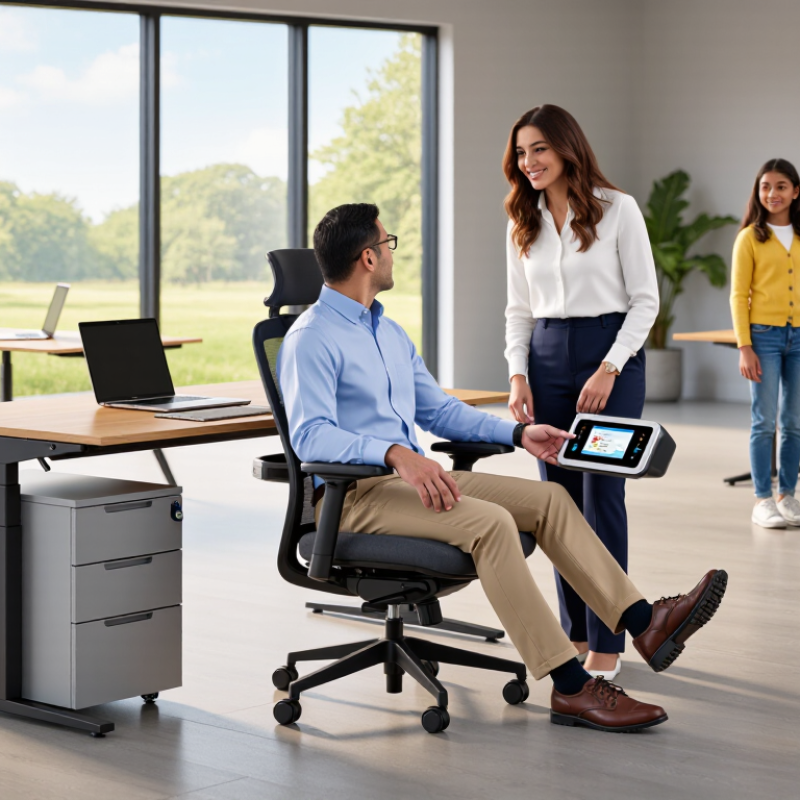
Before adjusting a smart chair, learn how each person actually uses it. Ask how many hours they sit, what tasks they do, and which positions feel comfortable. A person typing for long stretches may want steady lumbar support. Someone who shifts between calls and reading may prefer an easier recline. Small details matter.
Record practical measurements, such as seat height, desk height, and the distance from the floor to the user’s feet. Check whether armrests let shoulders relax or push them upward. Ask about preferred firmness and movement, too. Some users like gentle rocking; others need a more stable feel. Note any mobility needs or recurring discomfort, without treating chair settings as medical care. Persistent pain deserves advice from a qualified health professional.
Create a separate profile for each user, then test it during a normal work session. Have the person sit with feet supported and shoulders relaxed before saving adjustments. Ask what feels better after twenty minutes, not just after a quick try. That first guess may be wrong. I’d revise the settings rather than defend them. Keep notes on changes, since a small seat-depth adjustment can matter more than a dramatic recline setting.
When several people share a smart chair, save a separate fit profile for each user. Begin with seat height: adjust it until both feet rest flat and knees sit near hip level. Keep a small gap between the seat edge and the backs of the knees. Then set the backrest so its support meets the lower back, not the shoulder blades. Small changes matter.
The U.S. Occupational Safety and Health Administration’s computer workstation guidance recommends adjustable seating and support for the lower back. Use those basics before tuning app-based reminders or posture settings. The U.S. Bureau of Labor Statistics reported that musculoskeletal disorders accounted for 27% of private-industry cases involving days away from work in 2023. That figure covers many kinds of work, not just chair use, but it underscores why fit deserves attention. Let each person sit for several minutes, then adjust one setting at a time. Check that armrests do not lift the shoulders, and that controls remain easy to reach. A saved profile is only a starting point. Clothing, footwear, and daily discomfort can change what feels right. Recheck the setup.
A shared smart chair should remember the person, not just the last settings used. Create a separate profile for each user, with seat height, lumbar support, recline tension, and armrest position saved individually. Keep controls simple: a clear name and one tap to load a profile can prevent someone from working with the seat too high or the backrest too loose. Small details matter. A short user may need feet supported, while a taller colleague may need a deeper seat pan. NIOSH ergonomics guidance recommends fitting workstations to the individual and task, rather than expecting people to adapt to fixed equipment.
Profiles can support better habits, but they are not medical treatment. The U.S. Bureau of Labor Statistics reported 272,780 musculoskeletal disorder cases involving days away from work in 2018. That figure covers many jobs and causes; it does not show that chair settings alone prevent injuries. Still, it makes thoughtful setup worth the few seconds it takes. Ask each user to check pressure behind the knees, lower-back contact, and whether shoulders stay relaxed while typing. Then save adjustments.
Recheck profiles when users change desks, footwear, or work routines. A setting that felt right last month may feel wrong today. Honestly, saved presets can create false confidence if nobody tests them. Encourage users to adjust rather than endure discomfort, and make profile edits easy to find. Comfort varies.
When several people share a smart chair, make switching profiles easy without assuming everyone sits alike. Set individual seat height, recline limits, lumbar support, and reminder timing. Label profiles with names or clear icons, then test each one before regular use. Small changes matter. A few centimeters can alter how feet meet the floor or how shoulders rest against the back.
Treat sensors as guides, not judges. Check that pressure readings respond when a user shifts position, and recalibrate after moving the chair or changing its cushion. Ask each person to sit naturally during setup; a stiff “perfect posture” pose may not reflect a normal workday. Sensor results can be imperfect, especially when clothing or sitting habits vary. That deserves a second look.
Privacy settings need the same care as comfort settings. Review what the chair records, who can view each profile, and whether usage history can be deleted. Avoid sharing detailed sitting data by default, particularly on a common household or office device. Give users a clear way to pause sensing or remove their profile. If someone’s comfort changes, update the settings together rather than relying on an old calibration.
Example checklist showing how many settings to review in each area when creating shared-chair profiles.
Illustrative setup checklist, not a product benchmark or clinical recommendation. Keep personal fit and privacy settings separate for each user.
Tip: Test one setting at a time. Have each user sit with feet flat, hips supported, and shoulders relaxed. Adjust seat height, depth, backrest, and armrests; then check comfort after a short work session. A quick test matters: a setting that feels right while seated briefly may pinch behind the knees later. The UK Health and Safety Executive reported 543,000 workers with work-related musculoskeletal disorders in 2023/24, underscoring why fit deserves attention.
Tip: Save each user’s setup clearly. Record seat height, backrest tension, and armrest position in a shared note or profile, using simple labels rather than vague descriptions. A small ruler or marked adjustment scale can help users restore settings after someone else uses the chair. Don’t assume everyone remembers their preferred position.
Tip: Maintain and retest. Check adjustment levers, wheels, and fasteners regularly; clean contact surfaces according to the chair’s care instructions. When a user reports pressure, stiffness, or slipping, review the settings together and change one feature at a time. Keep a brief dated log. It may feel fussy, but it can reveal recurring problems—and sometimes the “best” setting needs another look. Source: HSE, Work-related ill health and occupational disease statistics, Great Britain, 2023/24.
| Tip | Setup Dimension | Example Starting Point | How to Test the Fit | Save and Maintain |
|---|---|---|---|---|
| 1. Create a separate profile for each user | Profile name and user identification | Use clear labels such as “User A,” “User B,” or “Morning Shift.” Avoid sharing one profile when users have different body dimensions. | Select the profile before sitting and confirm the displayed name matches the intended user. | Save each setup under its own profile. Review profile access if the chair is shared in a public or workplace setting. |
| 2. Set seat height for each person | Seat height and foot support | Adjust so feet rest flat on the floor or on a footrest, with knees roughly level with or slightly below the hips. The required height varies by user and desk. | Sit back in the chair and check that feet are supported without pressure behind the knees. | Save the height in the user’s profile. Recheck after changing desks, footwear, or footrests. |
| 3. Personalize seat depth | Distance between the backrest and the front edge of the seat | Set the seat so there is a small gap—about two to three finger widths—between the seat edge and the back of the knees. | With the back against the backrest, confirm the seat does not press into the knees and provides support under the thighs. | Save the depth separately for each user. Check that the adjustment locks securely before use. |
| 4. Adjust back support | Lumbar support and backrest position | Position the lumbar support to meet the natural curve of the lower back. Use a comfortable recline that allows the user to sit supported. | Lean back gently and confirm the support stays in place without creating a pressure point. | Record the preferred support position in the profile. Recheck if the backrest or lumbar components are moved. |
| 5. Set armrests to suit the workstation | Armrest height and width | Start with shoulders relaxed and elbows near the body. Set armrests to support the forearms without lifting the shoulders or obstructing the desk. | Type or use the desk for a few minutes. Adjust if the armrests cause shoulder tension or prevent the chair from moving close to the desk. | Save armrest settings for each user. Inspect adjustment points periodically for looseness or wear. |
| 6. Test the complete setup before saving | Combined posture and control response | Test the seat, backrest, armrests, and any powered features together rather than relying on preset values alone. | Spend several minutes seated at the normal workstation. Confirm stable foot support, comfortable reach, and easy access to the chair’s controls. | Save only after the user has tested the setup. Make small changes one at a time so the effect of each adjustment is clear. |
| 7. Maintain profiles and chair settings | Profile accuracy, moving parts, and adjustment records | Keep a brief record of each user’s preferred settings and the date they were last checked. | Confirm that saved settings still load correctly and that height, recline, and other adjustments move and lock as intended. | Review settings after a user’s needs or workstation change. Follow the chair’s care instructions and arrange repair if an adjustment becomes unreliable. |
Ask how long each person sits and what tasks they do. Typing for hours may call for steady lumbar support.
Check seat height, desk height, and the distance from the floor to the user’s feet. Small differences matter.
See whether shoulders stay relaxed. If they lift, adjust the armrests. It is easy to miss this.
Let the person work normally for about twenty minutes, then ask what feels better. A quick trial can mislead.
Seat height, recline limits, lumbar support, and reminder timing may need separate settings. A few centimeters can change foot support.
Notice whether readings respond when someone shifts position. Recalibrate after moving the chair or changing its cushion.
No. Clothing and sitting habits can affect results. Treat them as guides, not judges.
Check what sitting data is recorded, who can view profiles, and whether history can be deleted. Allow users to pause sensing.
Update the profile together instead of trusting an old calibration. Persistent pain deserves advice from a qualified health professional.
Learning how to customize a smart chair for multiple users starts with understanding each person’s needs, seating preferences, and daily routines. Adjust the chair’s height, depth, recline, lumbar support, and other ergonomic settings so each user can sit comfortably and maintain suitable posture. Where available, create individual profiles that save preferred control settings and support options, making it easier for everyone to switch between personalized setups.
Shared features also need thoughtful configuration. Review sensor and control settings, and agree on privacy preferences before enabling features that collect or store personal information. Finally, have each user test their setup, make small adjustments, and save the settings under the correct profile. Check the chair regularly for loose parts, worn components, or changes in comfort, and update profiles when users’ preferences or needs change. A clear setup routine helps keep a shared chair comfortable, practical, and easy to use.

Valet Chair